 EdNotes
How to keep work and private notes separate
Most people try folders first. Folders sort the notes and leave everything else alone — which is why the meeting reminder still arrives on Sunday morning and the shopping list still shares a screen with the incident report.
If you keep one set of notes for a job and another for a life, you have probably already tried to fix this. The fixes are well known and each one works for a while. It is worth being precise about where each of them actually leaks, because the leak is never in the place you set out to fix.
The three usual fixes, and where each one gives way
1. Two separate apps
The cleanest separation there is: nothing can bleed between them, because they share nothing. It fails on the other side — capture. A thought arrives while you are in the wrong app, and you either switch (and lose it) or write it down in the wrong place (and lose it later). Two apps also means two calendars, two reminder systems, two search boxes and two subscriptions.
2. Folders or tags inside one app
The most common answer, and the weakest one. A folder is a filing decision. It sorts notes after they exist, and it has no opinion about anything else in the app. Your notifications don't know about folders. Your calendar doesn't know about folders. Search certainly doesn't. So the organisation looks tidy in the list view and does nothing at all at 21:40 on a Sunday, which is the moment that mattered.
3. Two accounts in the same app
Real separation — and real friction. Signing out and in again is enough work that you stop doing it, and once you stop, everything lands in whichever account you happened to be signed into. Most apps also cannot show you both at once, so there is no way to see your whole day.
What separation actually has to cover
The reason folders disappoint is that "keep work and private separate" is five requirements wearing one coat. A solution that handles fewer than all five will leak, and it will leak at the specific point it skipped.
- The notes. The easy one. Every approach handles this.
- The calendar. A work meeting and a dentist appointment are the same kind of object, and most apps put them in the same list. Seeing Monday's stand-up while you plan a weekend is the same intrusion as the note, just in a different view.
- Notifications. The one almost everything skips, and the one that does the actual damage. A note you don't open can't reach you; a reminder can, and it will pick its own moment.
- Search. The quiet one. If the search box returns everything regardless of where you are, it undoes all of the above the first time you use it — you went looking for a recipe and found the performance review.
- Sharing. Handing someone the shopping list should not hand them a doorway into the account that also holds your work.
How EdNotes handles it
EdNotes is built around profiles rather than folders, which is the same idea applied one level deeper: a profile is not a place notes go, it is a mode the whole app is in. Two are included free — Work and Private, the split the app is designed around — and Pro lifts the limit for people who want one for studies, a side project or the family.
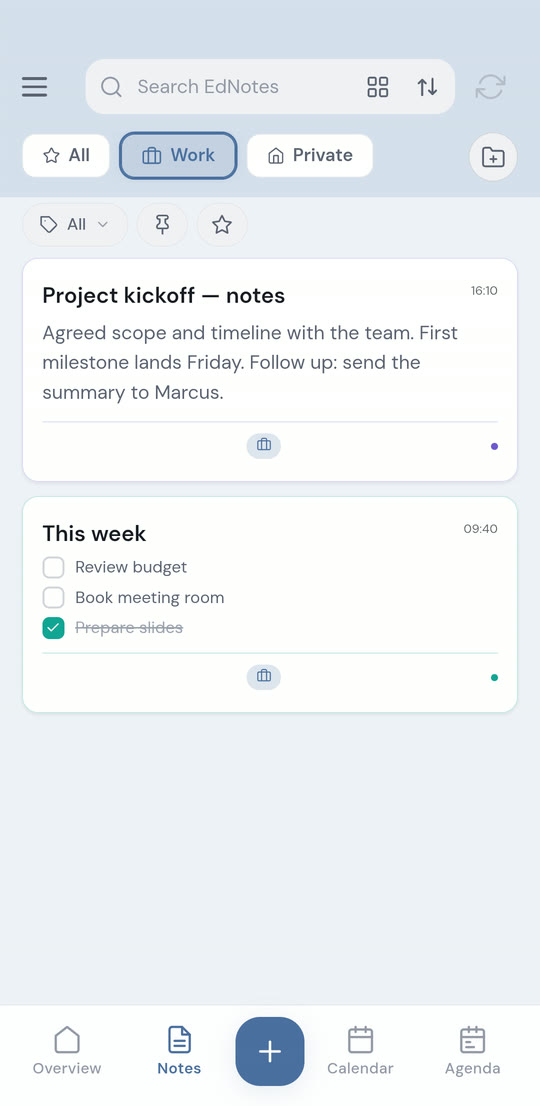
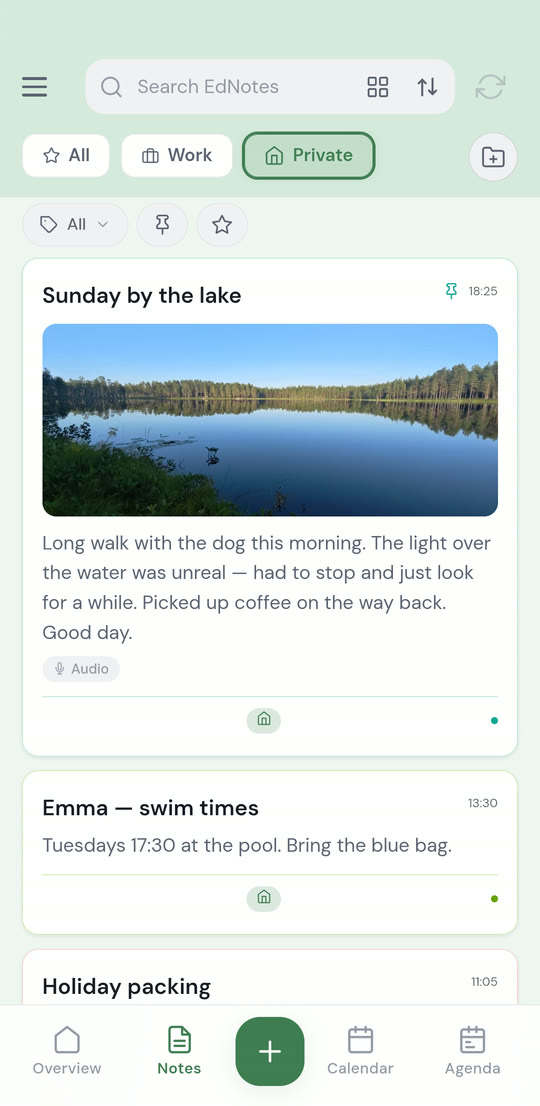
Each profile carries its own five
- Its own calendar. A profile links to a device or Google calendar of its own, and the calendar and agenda views show only that profile's events.
- Its own notification rules. You set the weekdays, the time ranges and the date periods when that profile is allowed to reach you. Work simply cannot ring on a Saturday if you did not say it could.
- Reminders are moved, not dropped. A reminder that falls outside a profile's allowed hours arrives at the next permitted time instead of vanishing. This is the part that makes the rules safe to use — silencing something is only comfortable when you know it will still find you.
- Search runs inside the profile you are in. The search box filters the notes that profile can see. Switch to the "All" view when you deliberately want everything.
- Sharing is per note. You share a single note or list with someone, not an account and not a profile.
Switching is one tap, so capture never has to wait — which is what makes it different from two accounts. And because both lives live in one app, an "All" view can still show you the whole day when you want it, which is what makes it different from two apps.
Labels work the other way on purpose. They are colour-coded and cut across profiles, so a label like "invoices" or "travel" can follow a theme through both halves of your life without merging them.
What this is not
A profile is organisation, not a lock. Anyone holding your unlocked phone can switch profile — separation here is about your own attention, not about keeping a determined person out. For the notes where that matters, EdNotes can put a PIN or your fingerprint on an individual note, and widgets and notifications respect that lock too.
It is an Android app. There is a web version for use on a computer, which is part of Pro; there is no iOS version.
Questions people ask
Can I see everything at once when I want to?
Yes. There is an "All" view alongside the profiles that shows every note and every event together. Separation is the default, not a wall.
Do I need more than two profiles?
Most people don't. Two is the work/private split the app is built around and it is free. The third usually shows up for a reason — studies, a side business, a shared family calendar — and that is when Pro starts being worth it.
Does it need an account?
No. Choose local storage at first launch and the notes stay on the phone, with no account created. You can turn on cloud sync later if you want the same notes on a second device or in the browser.
What happens to my notes if I stop paying for Pro?
Nothing is deleted. Existing content stays exactly where it is; the free limits only apply to adding more.
If I delete something by mistake?
Deleted notes sit in Trash for 30 days before they go for good.
Where to start
Set up the two profiles first and give the work one its notification hours before you do anything else — it takes about a minute and it is the setting that changes how the app feels. The rest can be filled in as you go.
There is a fuller tour of what's inside on the EdNotes home page, including the calendar sync, sharing and the web version.